Convert a Photo to Cross Stitch Pattern
Convert a Photo to Cross Stitch Pattern
Co-Founder & Lead Developer
Converting a photo into a cross stitch pattern used to require expensive desktop software and hours of manual work. With StitchCraft, you can do it in under a minute on your iPhone or iPad.
Why Convert Photos to Cross Stitch?
Photo-based cross stitch patterns let you create truly personal projects. Instead of stitching a generic design, you can stitch a portrait of your pet, a favorite vacation photo, or a family picture. The result is a one-of-a-kind piece of art.
Step 1: Choose the Right Photo
Not every photo makes a great cross stitch pattern. Here are some tips for choosing well:
- High contrast works best. Photos with clear differences between the subject and background convert more cleanly.
- Simple compositions shine. A close-up of a flower will look better than a busy street scene.
- Good lighting matters. Well-lit photos produce more accurate colors in the final pattern.
Step 2: Import and Adjust Settings
Open StitchCraft and tap the "New Pattern" button. Select your photo from your camera roll. You'll see a preview of the pattern with default settings.
Key settings to adjust:
- Grid size — Larger grids (100x100+) capture more detail but take longer to stitch. Start with 60x80 for a manageable first project.
- Color count — Fewer DMC colors (10-15) create a simpler, more stylized look. More colors (25-40) give photographic detail.
- Fabric count — This determines how large your finished piece will be. 14-count Aida is standard.
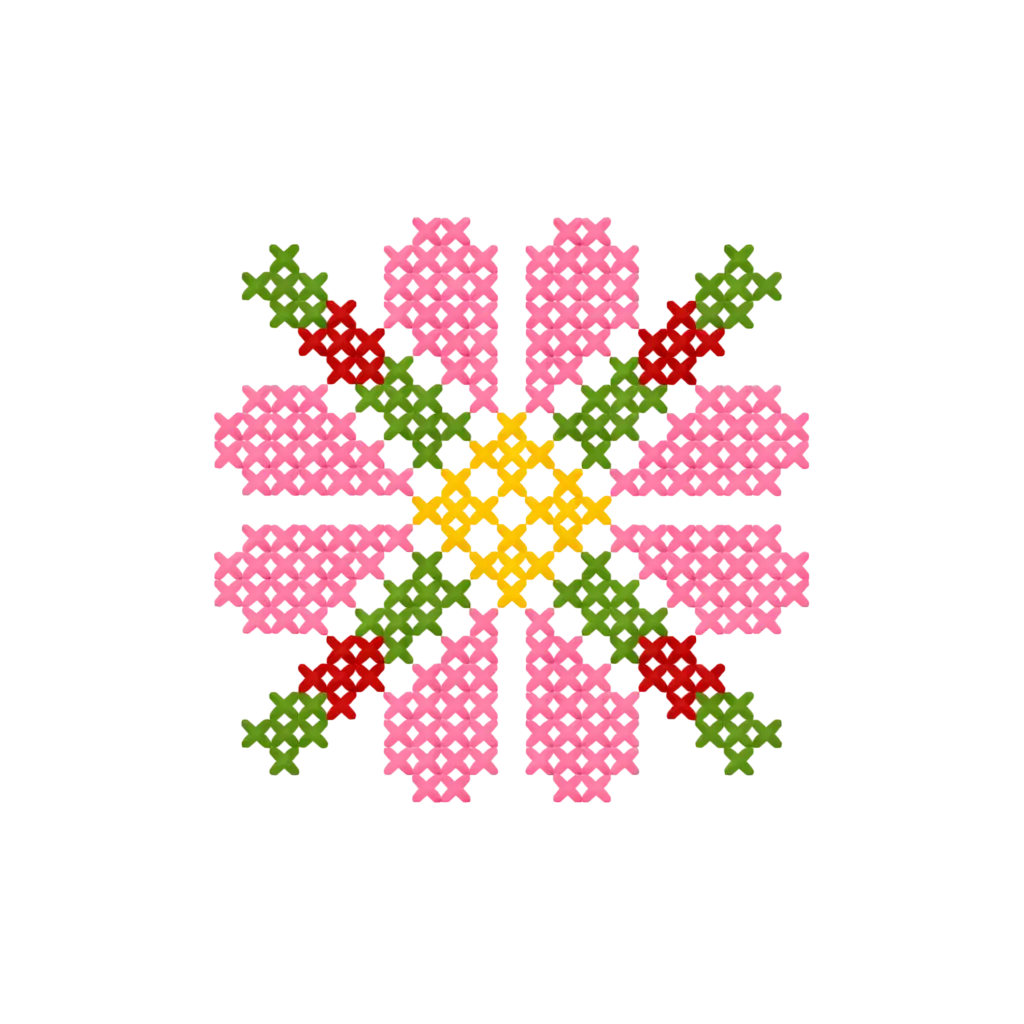
Turn Any Photo Into a Cross Stitch Pattern
- Accurate DMC color matching
- Track progress stitch by stitch
- Export print-ready PDF charts
iPhone & iPad
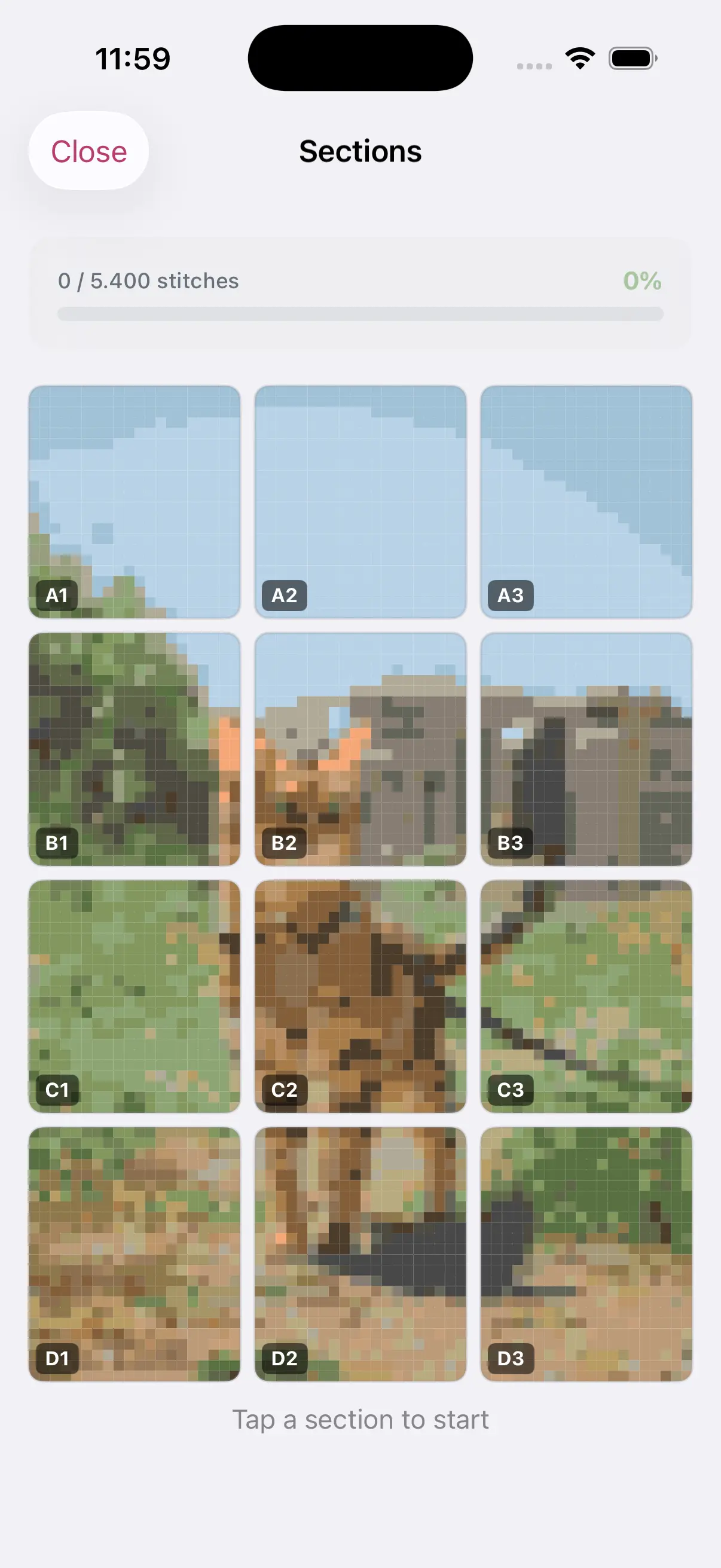
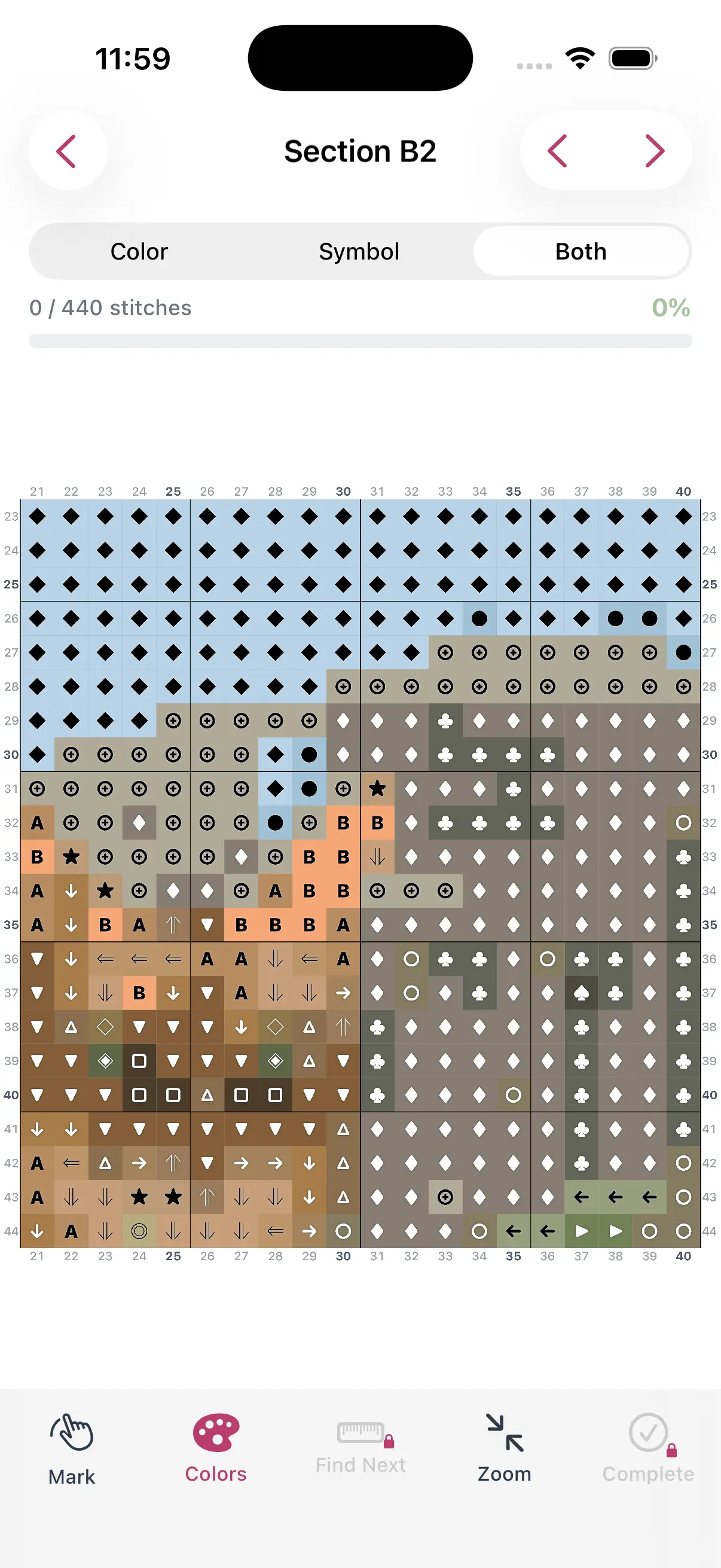
Step 3: Review the DMC Color Palette
StitchCraft automatically matches every color in your pattern to a real DMC thread number. Review the color palette and make adjustments:
- Swap similar colors to reduce your thread count
- Remove colors that appear in only a few stitches
- Adjust the overall palette to match threads you already own
Step 4: Export or Start Stitching
Once you're happy with your pattern, you have two options:
- Start stitching in-app — Use the built-in progress tracker to mark stitches as you complete them.
- Export as PDF — Get a printable pattern with a symbol chart, DMC thread list, and color key.
Tips for Clean Results
- Crop your photo tightly before converting
- Use the pattern editor to clean up any messy areas
- Preview at different grid sizes before committing
- Check the DMC thread list to make sure all colors are available at your local store
Converting photos to cross stitch patterns is one of the most rewarding ways to make your stitching personal. Give it a try with a photo you love.