Image to Cross Stitch Pattern Guide
Image to Cross Stitch Pattern Guide
Co-Founder & Lead Developer
Turning an image into a cross stitch pattern is one of the most popular uses of pattern making apps. Whether it's a photo, illustration, or logo, the right approach makes all the difference.
What Types of Images Work Best?
Not every image converts equally well. Here's how different image types perform:
Photos
Photos with a clear subject and simple background convert best. Portraits, close-ups of pets, and nature shots are popular choices. Use the photo converter for best results.
Illustrations and Artwork
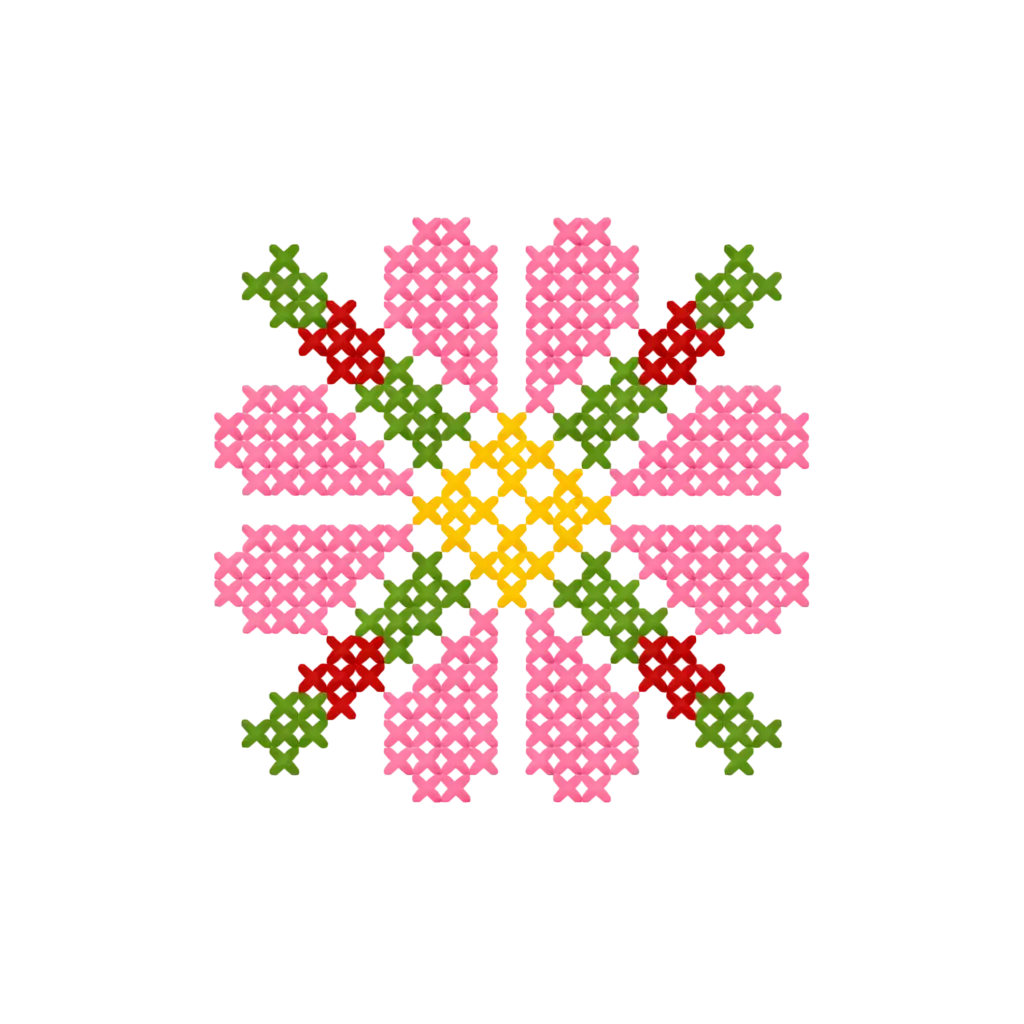
Flat illustrations with solid colors convert beautifully. The limited color palette translates naturally to DMC threads. Comic art, watercolor paintings, and graphic designs all work well.
Logos and Text
Logos with clean lines and bold colors produce sharp patterns. Text-heavy images need larger grid sizes to keep letters readable.
Pixel Art
Pixel art is already grid-based, making it nearly perfect for cross stitch conversion. The conversion is almost 1:1 if the pixel art dimensions match your grid size.
Image Preparation Tips
Before converting, prepare your image for the best results:
- Crop to the subject — Remove empty space and unnecessary background
- Adjust brightness and contrast — Slightly boosting contrast improves pattern clarity
- Resize if needed — Very large images won't produce better patterns; the converter scales them down anyway
- Consider the background — A solid background uses fewer colors and stitches than a complex one
Choosing the Right Grid Size
Turn Any Photo Into a Cross Stitch Pattern
- Accurate DMC color matching
- Track progress stitch by stitch
- Export print-ready PDF charts
iPhone & iPad
Grid size is the most important setting in the conversion:
- Small (30x40) — Simple icons, quick projects, coasters
- Medium (60x80) — Most photos and illustrations
- Large (100x130) — Detailed portraits, landscapes
- Extra large (150x200+) — Photo-realistic pieces, wall art
The grid size multiplied by your fabric count determines the physical size of the finished piece.
Color Settings for Different Images
Different image types need different color counts:
- Simple illustrations — 5-10 DMC colors
- Stylized photos — 12-18 DMC colors
- Detailed photos — 20-30 DMC colors
- Photo-realistic conversions — 30-40 DMC colors
Fewer colors create a more stylized, graphic look. More colors capture subtle gradients and shading.
Step-by-Step Conversion
- Open StitchCraft and tap "New Pattern"
- Select your image from your photo library
- Set grid size and maximum color count
- Preview the generated pattern
- Adjust settings if the result isn't quite right
- Edit individual colors or stitches if needed
- Export as PDF or start stitching with the progress tracker
Troubleshooting Common Issues
Pattern looks blurry — Increase the grid size to capture more detail.
Colors look wrong — Try adjusting the color count. Sometimes adding more colors improves accuracy; other times reducing colors gives a cleaner result.
Subject is hard to recognize — Crop tighter to the subject and increase contrast in the original image.
Too many similar colors — Reduce the color count or manually merge similar DMC colors in the pattern editor.
Converting images to cross stitch patterns opens up endless project possibilities. Start with a simple image and experiment with different settings to learn what works best for your style.