Turn Any Photo into a Cross Stitch Pattern
Turn Any Photo into a Cross Stitch Pattern
Co-Founder & Lead Developer
Almost any photo can become a cross stitch pattern — but some photos convert far better than others. These tips will help you pick winning images and set them up for the best possible results.
Photos That Convert Best
Pet portraits are a perennial favorite. A close-up of a dog or cat face, well-lit against a simple background, converts cleanly and stitches up beautifully. The high contrast between fur and background makes for crisp color separation.
Landscapes with strong shapes work well because they have natural color zones — sky, horizon, ground — that translate cleanly into stitchable areas.
Simple floral photos with a single flower against a soft background are excellent for beginners. The clear subject and limited color range make for a manageable palette.
Portraits of people can be stunning but require a higher color count and larger grid to capture facial features clearly. Start with a 100×100 grid for portrait work.
Photos to Avoid
- Busy group shots with many small faces
- Low-light or grainy photos (noise becomes visual clutter in the pattern)
- Images with lots of fine text or tiny details
- Photos where the subject blends into the background
Prepare Your Photo Before Converting
A little preparation before you import the photo into StitchCraft goes a long way:
Turn Any Photo Into a Cross Stitch Pattern
- Accurate DMC color matching
- Track progress stitch by stitch
- Export print-ready PDF charts
iPhone & iPad
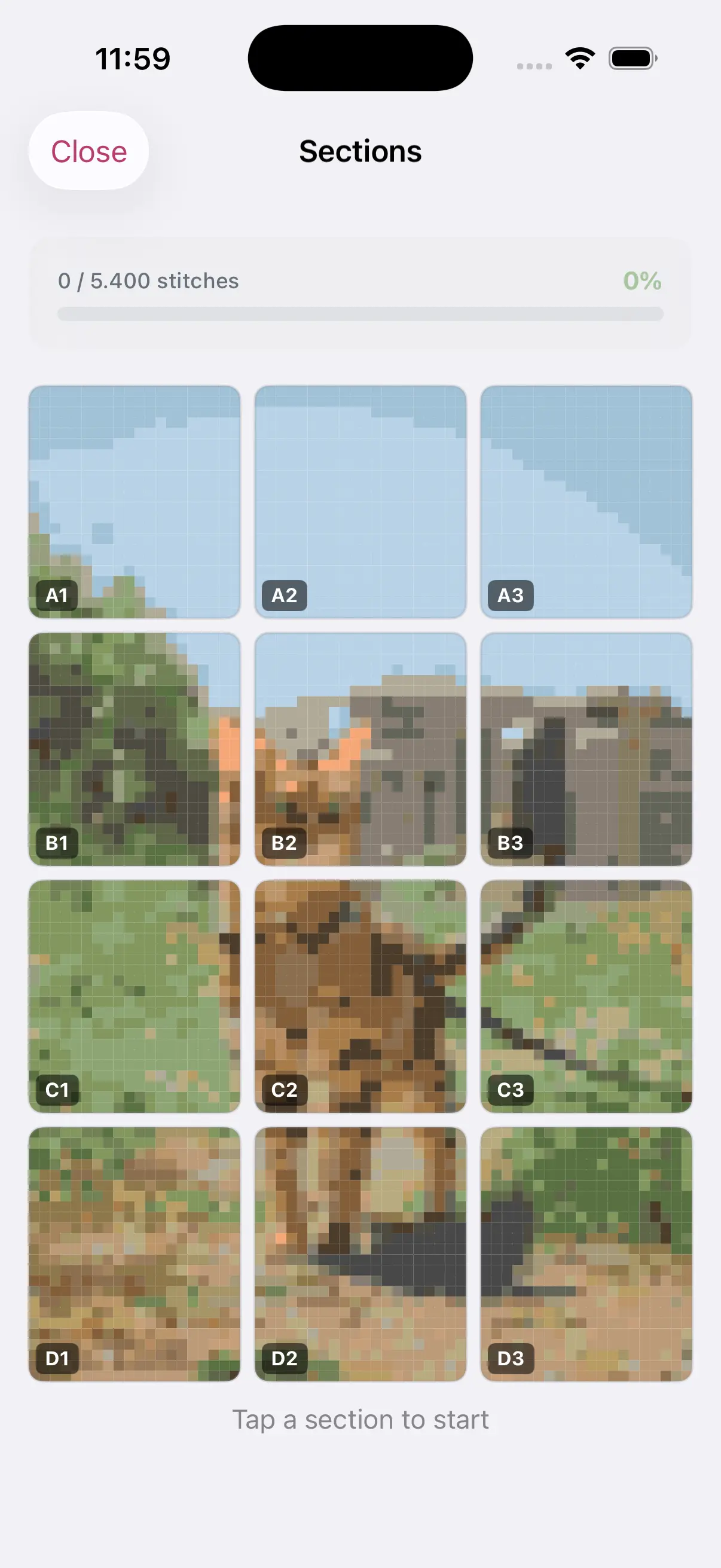
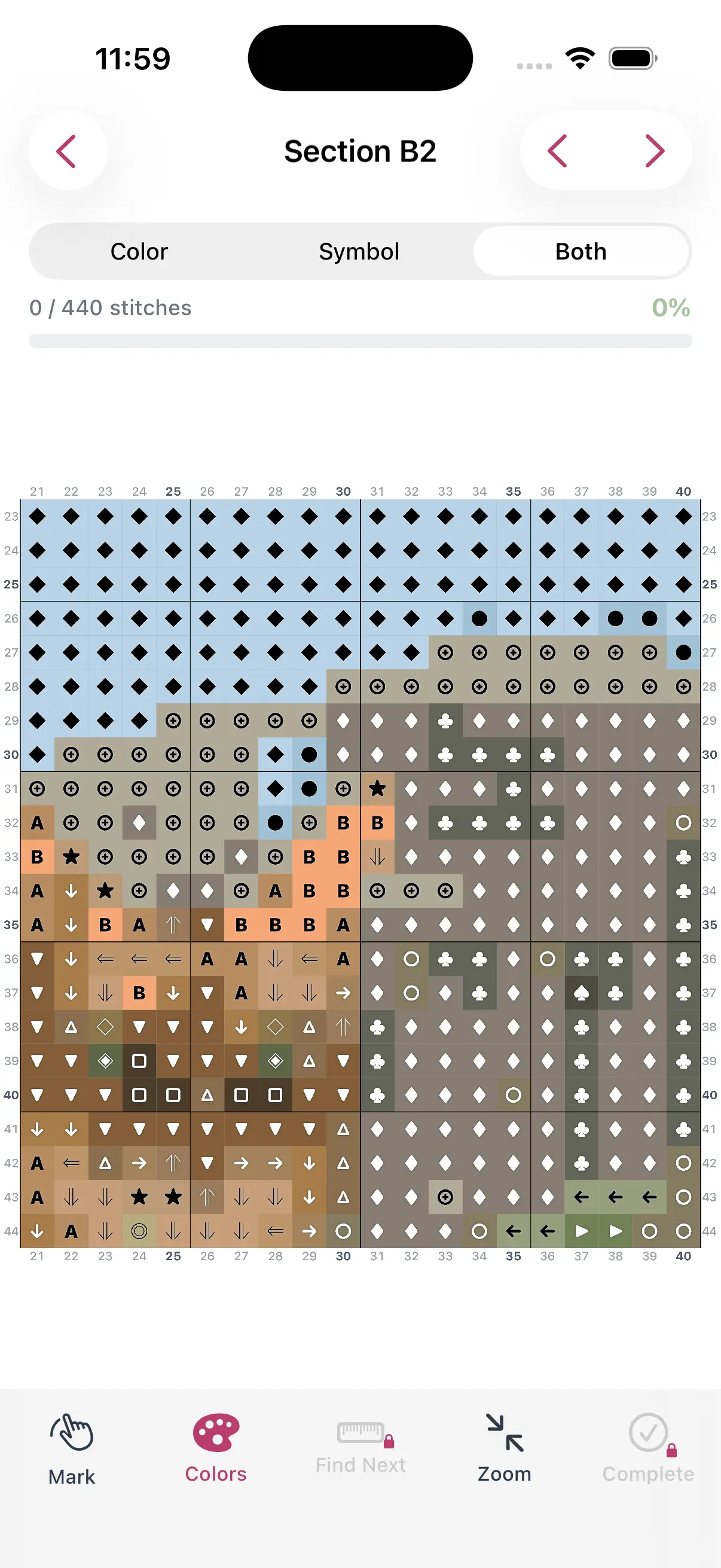
Crop tightly. Remove unnecessary background. The more of the frame your subject fills, the more stitches are used on the part you actually care about.
Increase contrast slightly. In your phone's photo editor, a small boost to contrast and clarity helps colors separate more cleanly in the pattern.
Simplify the background. If your subject has a busy background, consider using a photo editing app to blur or replace it before importing.
Quick-Start Tips in StitchCraft
Once you import your photo into StitchCraft:
- Start with a lower color count (12–15) and increase only if the result looks too blocky
- Try multiple grid sizes before committing — the preview updates instantly
- Use the palette editor to remove colors that appear in fewer than 10 stitches
- Check the thread list to confirm all DMC numbers are available to buy
The Best First Project
For your very first photo-to-pattern project, choose a close-up photo of a pet or a simple landscape. Keep the grid at 60×80 or smaller and the color count at 12–15. This gives you a manageable first stitch while still producing a result that looks great.
Download StitchCraft from the App Store and turn your favorite photo into a pattern today.