Cross Stitch Pattern Generator: The Ultimate Guide
Cross Stitch Pattern Generator: The Ultimate Guide
Co-Founder & Design Lead
A cross stitch pattern generator takes an image and converts it into a stitchable grid — automatically. If you've never used one, this guide explains exactly how they work, what settings matter, and how to get the best output.
What a Pattern Generator Actually Does
At its core, a pattern generator performs three tasks:
- Resizes the image to your chosen grid dimensions (e.g., 80×60 stitches)
- Reduces the colors to a manageable set (e.g., 20 DMC shades)
- Maps each pixel to a stitch with a specific DMC thread color
The result is a grid where every cell represents one cross stitch, and every color in the grid corresponds to a real, purchasable thread. This is fundamentally different from hand-charting, where you'd draw each stitch manually and choose colors by eye.
The Three Settings That Matter Most
Grid Size
Grid size controls how many stitches your pattern contains. A larger grid captures more detail but produces a physically larger piece. The relationship is:
Finished width (inches) = grid width ÷ fabric count
A 100-stitch-wide pattern on 14-count Aida = about 7 inches wide. On 18-count, the same pattern = about 5.5 inches wide.
Start with a grid that matches your intended finished size, not your desired level of detail. You can always increase the grid later if the result looks too blocky.
Color Count
Color count sets how many distinct DMC thread colors the generator uses. More colors produce a photographic, realistic look. Fewer colors create a stylized, graphic result.
A practical guide:
- 8–12 colors: bold, graphic patterns — great for beginners
- 15–20 colors: balanced detail — the most versatile range
- 25–40 colors: photorealistic — best for portraits and detailed landscapes
Turn Any Photo Into a Cross Stitch Pattern
- Accurate DMC color matching
- Track progress stitch by stitch
- Export print-ready PDF charts
iPhone & iPad
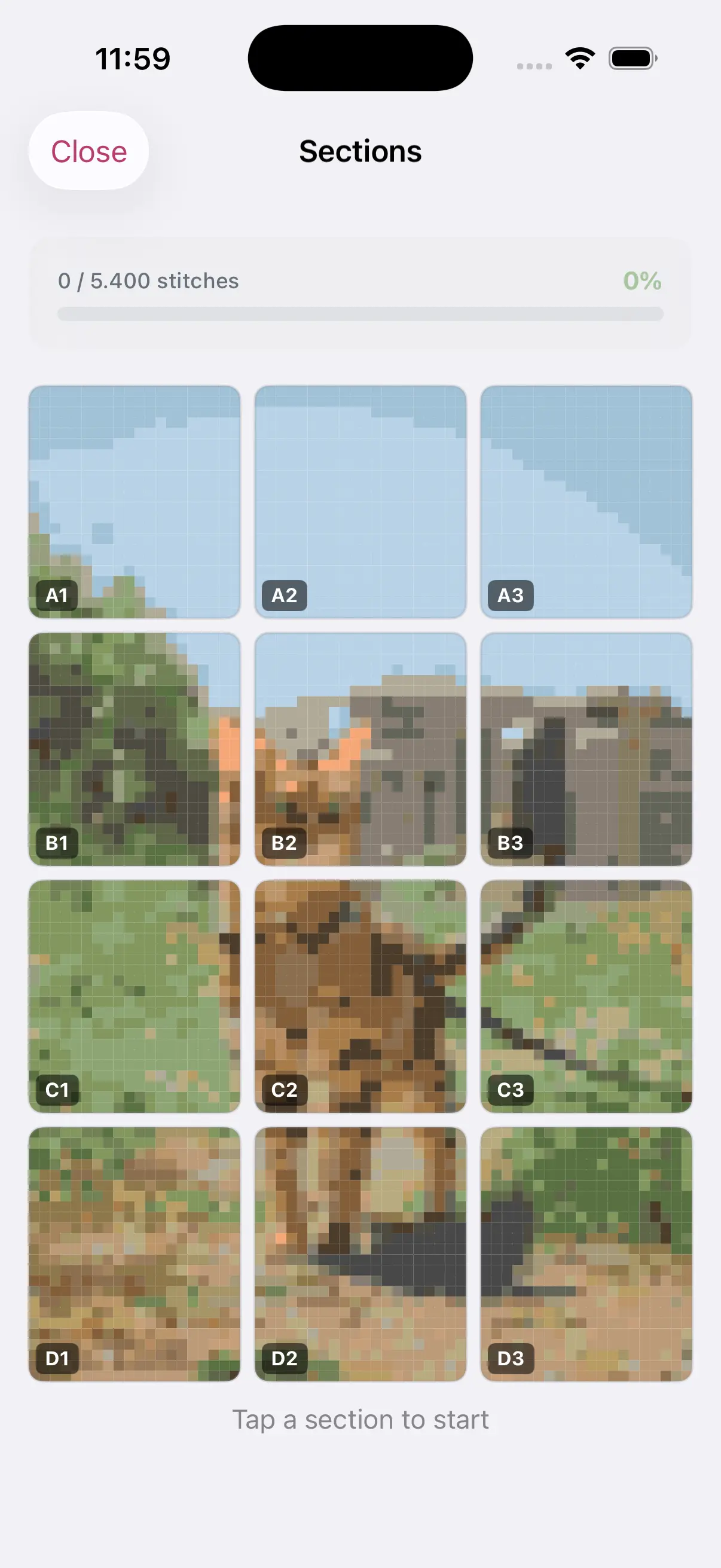
Higher color counts also mean more threads to buy and more color changes while stitching. Find the minimum color count that makes your preview look like what you want.
Fabric Count
Fabric count (the number listed on Aida fabric, e.g., 14-count, 18-count, 28-count) determines the density of your stitches. Higher fabric counts = smaller stitches = more detail in the same physical space.
Most beginners use 14-count Aida. If you want a smaller finished piece or finer detail, 18-count is the next step up.
How StitchCraft's Generator Works
StitchCraft uses a high-quality color reduction algorithm that preserves the most important hues in your image while reducing to your chosen color count. The generator also:
- Automatically applies DMC color matching to every pixel
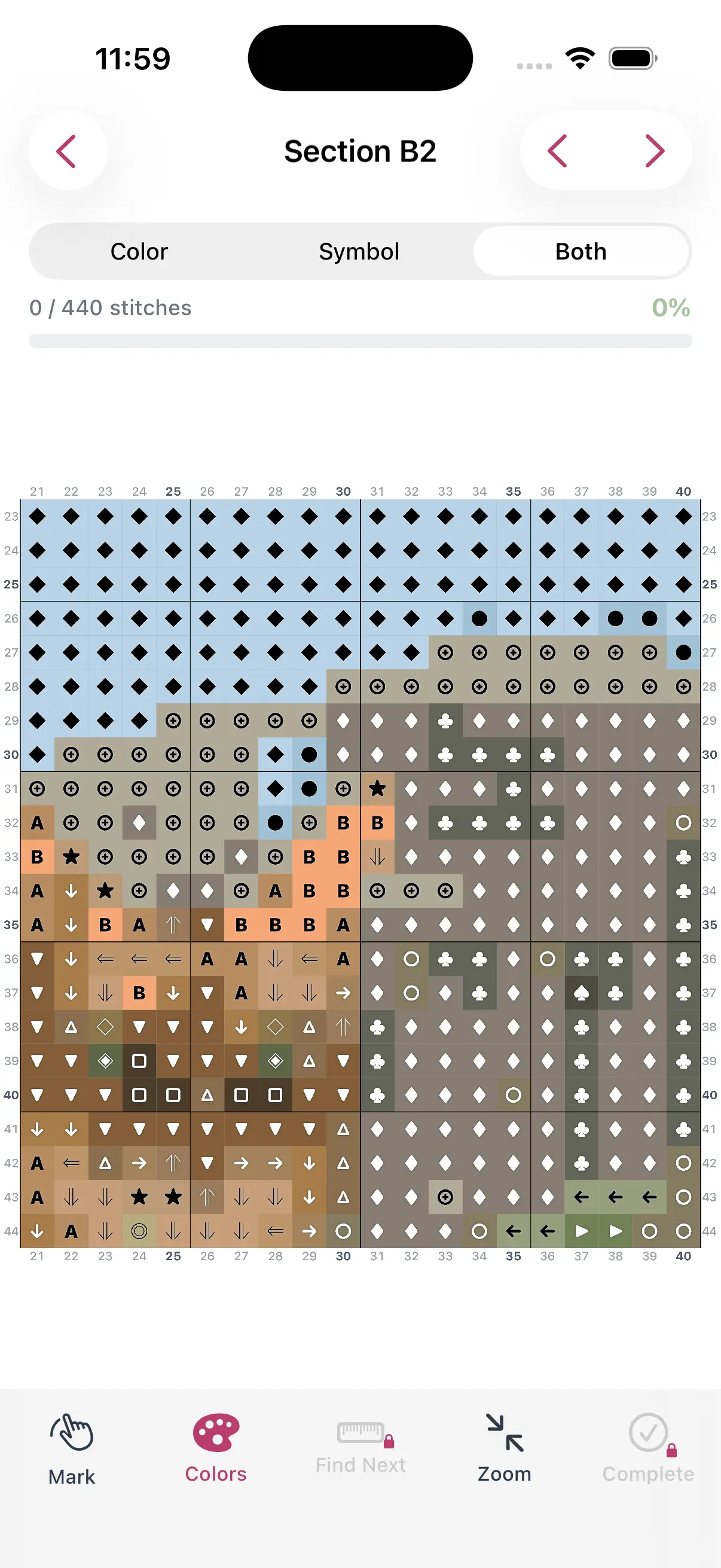
- Generates a symbol chart (each color gets a unique symbol for printing)
- Produces a thread list with stitch counts per color
- Supports live preview — change any setting and see the result immediately
Common Mistakes When Using a Generator
Setting the color count too high. More colors isn't always better. A 40-color pattern on a 60×60 grid often looks worse than a 20-color pattern because the generator must use rare, visually similar shades to fill the quota.
Skipping the palette review. Always review the generated palette before stitching. Remove colors with fewer than 10 stitches and merge near-identical shades. This step dramatically improves the final pattern.
Ignoring the source image quality. A blurry or poorly lit photo produces a blurry, noisy pattern. The generator can only work with what it's given. Prepare your image first.
From Generated Pattern to Finished Piece
Once you're happy with the preview, export a PDF or use the in-app tracker to start stitching. The generator's output is a complete, print-ready chart — no additional work required.
Download StitchCraft from the App Store to try the generator on your own photos and images.